Actual Downloader - Download Files Easily
Actual Downloader is a program for downloading files using command-line parameters for Windows. It is compact, lightweight and powerful, with many options.
You can use Actual Downloader with your application or installation to easily download files. It supports downloading single and multiple files, shows the download progress, handles errors and authentication, and more. Actual Downloader can be used to create online installers.
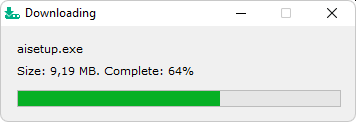
Key Features
- Single executable file (Downloader.exe)
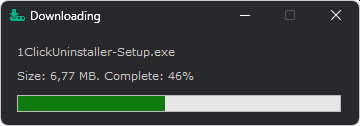
- Customizable interface (including Dark theme)
- Support for mirror links (used if the main link is not available)
- Open link in browser, if download fails (in case downloaders are forbidden by server)
Actual Downloader program (file Downloader.exe) is distributed with Actual Installer Lite/Pro/Pro+ and Actual Updater Pro.
For evaluation purposes you can try TRIAL version.
Downloader Screen shots
Dark Theme:
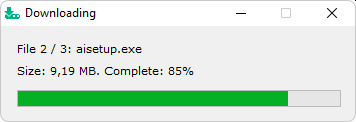
Download files from a list:
How to use Actual Downloader with Actual Installer
To download a file during installation, in your Actual Installer project, select the menu Tools \ Add Downloader and enter a download link. This will add a command on the System \ Commands page, which will execute Downloader.exe (from <SetupTempDir>) at the end of installation with parameters to download the file into <InstallDir>.
Download command example:
File:			<SetupTempDir>\Downloader.exe
Parameters:	/S "http://www.mysite.com/file.exe" /D "<InstallDir>\file.exe"
OS:			Any
Show:		Normal
Timing:		After Installation
Wait:		Yes
Run as admin:	No
TIP: To show the user a checkbox, and download the file only if it is checked, see this example.
Actual Downloader is a multi-language program with automatic language detection. Supported languages: Chinese, Dutch, English, French, German, Italian, Japanese, Korean, Polish, Portuguese, Russian, Spanish. To use English, add parameter /Eng . To use specific language, add /Language "language name" (for example: /Language "German").
Command-line parameters for Downloader.exe (Actual Downloader tool)
If the file is launched with no parameters, it will show the app version and some other information.
The only required parameter is /S. All others are optional.
- /S - Source file URL to download. Example: /S "http://website.com/file.txt"
- /D - Destination file. Can be a full file path, a directory, or just a file name. If not specified, then the file will be downloaded to the Downloader.exe directory. Supports environment variables. Automatically creates folders. Automatic process elevation if required.
- /L - Launch file after download is complete
- /A - (Used with /L) Run the downloaded file as administrator
- /W - (Used with /L) Wait until launched file is finished
- /C - (Used with /L) Set The CurrentDir to the downloaded file location
- /X - (Used with /L) Add command-line parameters / arguments to launch the downloaded file. All parameters after /X will be passed to the file. To pass only one parameter after /X, add /XOP. Example: /L /X /SuperSilent /S - the downloaded file will be launched with parameters /SuperSilent /S . Note that in this example the parameter /S is not a parameter for Downloader.exe.
- /Y - (Used with /L and /W) Downloader.exe will return an exit code of launched file after it finishes
- /M - Mirror source URL (if the address specified in /S is not available, the mirror URL will be used). Example: /S "http://website.com/file.txt" /M "http://mirrorsite.com/file.txt"
- /F - Download multiple files. In this mode the source URL (/S) must be a weblink to a plain text file with a list of files to download (by line). In the switch /D specify destination folder. It is possible to specify destination path for each file - separate URL and Destination Path with a double question sign ??
- /Q - Quite mode (no GUI)
- /H - Do not show name of downloading file (show "data")
- /E - Add it if there is an issue with the file extension
- /P - If specify /D "\file.exe" then file is created in the Downloader.exe folder. Add /P to create in the Root Drive (C:\file.exe)
- /G - The CurrentDir is used for the file destination
- /I - Check Internet Connection before downloading
- /K - By default, if the destination file exists, it will be overwritten. Add this switch to skip the file if it exists.
- /O - If the destination file exists, the program will ask the user to overwrite it
- /B - Beep on successful download
- /R - By default, if download fails, then the program ask the user to open the link in browser. To disable this feature, add parameter /R
NOTE: See more parameters in release notes below.
Exit codes of Downloader.exe
- 0 - Download succesfull
- 1 - Error: Internet required
- 2 - Error: Failed to download
- 3 - Canceled by user
- 4 - Error: Cannot create file
- 5 - Error: /S is not specified
- 6 - Error: File List error (/F mode) (encoding or not found)
The current directory is the directory of the Downloader.exe file.
User Agent of the program is ActualDownloader/version, for example ActualDownloader/3.7
Examples
Download a single file into the directory of Downloader.exe:
Downloader.exe /S "http://www.website.com/file.exe"
Download a single file into "C:\Dir":
Downloader.exe /S "http://www.website.com/file.exe" /D "C:\Dir\file.exe"
or
Downloader.exe /S "http://www.website.com/file.exe" /D "C:\Dir"
Download multiple files:
Downloader.exe /S "http://www.website.com/FilesList.txt" /F
Example of a list of files (files will be downloaded to the directory of Downloader.exe)
http://www.website.com/File1.txt
http://www.website.com/File2.txt
http://www.website.com/File3.txt
Example of a list of files, with different file destinations:
http://www.website.com/File1.txt
http://www.website.com/File2.txt??NewFileName.txt
http://www.website.com/File3.txt??Dir\File3.txt
http://www.website.com/File4.txt??C:\Dir\File4.txt
http://www.website.com/File5.txt??..\File5.txt
How to download a file from password protected URL
If a file or a folder on your web server requires authentication, then the Downloader will ask the user to enter User Name and Password.
Or you can use the following format to include username and password in URL:
https://username:password@example.com/file.exe
What's New
Version 4.0 - March 07, 2026
Added download status text: Connecting, Connected, Connecting (mirror). To disable, add /NoConnectText
Added languages: Japanese, Portuguese, Korean
Added exit code: 6 - file list error (encoding or not found)
Added support for URL without protocol (protocol-relative), for example "//website.com/file.txt"
Added support for Unicode file names in File List (/F mode)
Show message if file deleted after download: "The file was downloaded successfully, but was then deleted (possibly by your antivirus)"
If the size of the file is not available, display the currently downloaded size
Return correct exit code, if the process is elevated
If use parameters /Q (silent mode) and /I (check internet connection), then the program will wait for connection and then start downloading. Previously, it just terminated with code 1.
Mirror URL (/M "URL") can be used for the multiple files download mode (/F), if the address specified in /S is not available
Parameter /B can also be used with the multiple files download mode
Use the mirror link, if an error occurs during downloading
Fixed a bug with parameter /O in the silent mode
Do not show URL containing username and password in error messages
/AutoElevate - automatically run the process with administrator privileges if unable to create folder or file. Without this parameter, the app asks the user for elevation.
/NoDestChange - by default, if the app can't create a folder or file, it suggests using a different location. Add this parameter to not use this feature.
/CheckSize - add this parameter to check if the total downloaded size is equal to the file size, otherwise show a message "The file may not have been fully downloaded". Exit code is 0
/CheckSizeError (used with /CheckSize) add it to report a failed download if the check size is not correct. Exit code is 2
/CRC32 (for example /CRC32 "01234567") - add it to compare the file CRC32 (checksum) and ensure that the downloaded file is not corrupted, otherwise show a message "The file may not have been fully downloaded (CRC32 check error)"
/XOP (used with /L and /X) - only one parameter after /X will be passed to the file, instead of all remaining
/Alt - alternative download method
/DEXE - for destination file use "file.exe"
/DZIP - for destination file use "data.zip"
/NoPosChange - show the program on the primary monitor
/NPFURL - add it if there is an issue with the name of the destination file
/LSF (used with /L) - launch file anyway, even if it was skipped (for example, when using parameters /K or /O). To return exit code 6 (instead of 0), when the user cancels running the file, add parameter /E6NoL .
/FLNoIgnoreError - do not continue if cannot download a file in Multi File mode (/F)
/Compact - use the compact mode - no caption, no borders
/HideClose - hide the Close and Minimize buttons
/Dark - use the dark theme
/SysTheme - use the System theme
/Language - specify language, for example /Language "German"
/HideURL - do not show URL in error messages
/Font - change font (default is Verdana). Example: /Font "Tahoma"
/FontSize - change font size (default is 8)
/FontColor - change font color (integer value, you can convert RGB or HTML color code in Actual Installer program - Interface - Template Editor)
/Color - change the background color (integer value, example /Color "15790320", you can convert RGB or HTML color code in Actual Installer program - Interface - Template Editor)
Version 3.7 - October 06, 2024
Improved: download feature - issue with long connection to website; if the return code is 404, then the download fails
Added Exit Codes: 1 - Internet required; 3 - Canceled by user; 4 - Cannot create file
If the download fails, then ask user to open the link in browser. To disable this feature, add switch /R
Version 3.6 - March 12, 2024
Improved: On systems with multiple monitors, the program is displayed on the current monitor
Improved: If the target file is running, the program prompts the user to manually close it, or force close it
Improved: When showing messages, the main dialog will not use the StayOnTop style, so it won't cover smaller apps behind it
Version 3.5 - January 12, 2024
Fixed a bug when running Downloader.exe with parameters /L /W, the downloader stays on top.
Little improvements.
Version 3.4 - March 12, 2023
Parameter /T is deprecated. Now the app is always Stay On Top
Launch file after download (parameter /L "filename") can be used with the /F parameter (multiple files download)
Parameter /X - add command-line parameters / switches to launch the downloaded file
Fixed little bug with destination folder in the /F mode
Force close exe file in the silent mode
Version 3.3 - September 10, 2022
Added:
- Multi language interface. To always use English, use switch /ENG
- Default function to identify a system language - GetUserDefaultUILanguage. Add switch /LNG to use GetSystemDefaultLangID
- Automatic elevation if unable to create file or folder
- Command-line parameters / switches:
/B Beep on successful download
/M Mirror source URL (only for a single file download)
/W (Used with /L) Wait for the app is finished
/Y (Used with /L and /W) Downloader.exe returns an exit code of the launched app
If you have questions, please contact us.