
On the Installation \ Files and Folders page you can add files of your application to the installation package. Files are compressed using a ZIP algorithm. When using an installation type: Setup Exe + Data, a 7z (LZMA) algorithm can be used to archive files from Source Directory.
Click File Options... to manage adding hidden files & folders, empty folders, and specific file extensions.
The default options for files to be installed: "If exists" = "Overwrite" and "Remove on uninstall". You can change it by clicking the Edit button. Files will have their original modification date and attributes. To use install date, add -noModifyDate to Setup Parameters. To reset attributes, add -noFileAttrb .
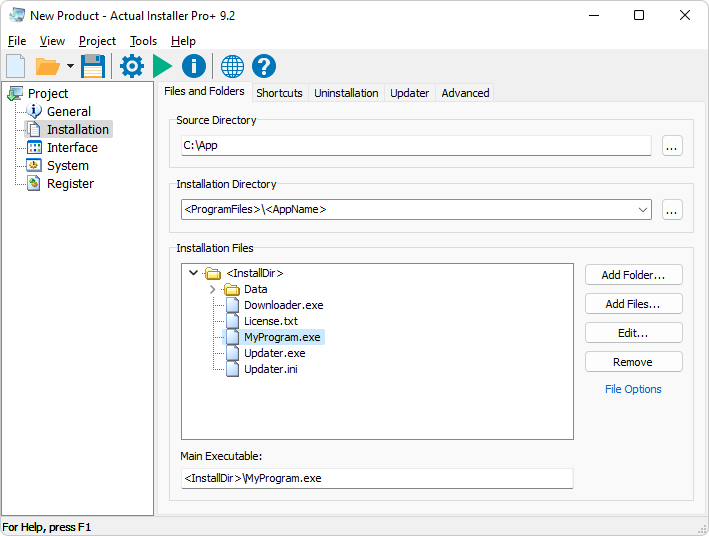
It is recommended to prepare a directory containing all files and folders of your application, and specify it as Source Directory. All files from this directory will be included in the setup program (according to the File Options) and will be installed on the user's computer into the directory specified in the Installation Directory field.
Any changes in this directory will automatically take effect on project load (or select "Refresh" from the contex menu of the files treeview).
You may leave this field empty and add files using the Add Files... and Add Folder... buttons. To clear / reset this field, you need to click the ...(Browse) button and then click Cancel on the Folder Select dialog.
Source Directory must be specified when creating package type Setup EXE + Data. In this case, the source directory will be archived to the data file by using 7-Zip utility (in this case, file options are ignored).
Changing file name and location is not supported for files from this directory. It is recommended to make necessary changes in the file & folder structure using Windows Explorer, or you can remove the file or folder from the project, and then add them back using the buttons Add Files / Add Folder.
Default destination folder for product installation. The path will be stored in the variable: <InstallDir>
Please read recommendation by Microsoft on where to install applications.
By default (the installation is for All Users), it is set to <ProgramFiles>\<AppName>.
This value will return on the target machine the following local path:
for 32-bit app on 32-bit Windows: C:\Program Files\Product Name
for 32-bit app on 64-bit Windows: C:\Program Files (x86)\Product Name
for 64-bit app: C:\Program Files\Product Name
Bitness of the application you need to specify on the General \ Requirements page. If your app is 64-bit, then select "64-bit only" in the Required OS section. If the app is 32-bit, then select "32 & 64 bit" (as 64-bit Windows supports 32-bit apps).
Default path for installation for the Current User only is <AppData>\<AppName> (returns C:\Users\%UserName%\AppData\Roaming\Product Name).
Changing the Installation Directory is disable for the user in Update Mode (when the setup program updates the currently installed version of the application).
To not allow the user to change the Installation Directory, use the option "Disable folder changing" in the "Mode 'Select Installation Directory'" (tab Advanced).
In this section you can view and change the file & folder structure of the application. Also, you can add additional files to the setup by using the buttons "Add Files..." or "Add Folders...".
The Drag and Drop feature is supported.
Note: if files/folders are not displayed, check the File Options (as it may be configured to not show hidden files or empty folders; or enabled the option "Do not show files tree view").
Right-click on this section activates a menu which allows you to: Create New Folder, Create Shortcut, Open File Location, Copy Path, and set a file as Main Executable.
It is recommended to specify the main executable (the file that launches your app). The path will be stored in the variable <MainExe>
By default, the icon of this file is used as the icon of the application in the Control Panel \ Programs and Features list.
To specify it, right-click on the file on the "Installation Files" section and select "Set as Main Executable".
After the main executable file is specified, Actual Installer will automatically set for this file the following settings:
- Two shortcuts (on Desktop and Programs Menu).
- Launch Application (Interface \ Finish tab);