
You can set the installation level ("Install Product for") on the General \ Parameters page.
Available options:
Current User only
All Users
Ask User (All Users by default)
Ask User (Current User by default)
An application can be installed for All Users (also know as "per-machine" installation) or Current User ("per-user"). Select "All Users" if you want your app can be used by anyone on the user's computer. Installation for "All Users" requires administrator privileges. If the user cannot provide it, the installation will fail.
When installing for All Users, it is recommended to install in the "C:\Program Files" folder (variable <ProgramFiles>). This folder is system-protected. For standard users (without administrator rights), this folder and all subfolders and files are Read-Only. This is done for security reasons. Install to this folder your app files. It is strongly recommended NOT to store user-specific data here (better use the user's AppData folder).
Installation for Current User does not require administrator privileges. The app will be available only for the user who installed it. By default (option "Run as administrator" is not selected), the setup program is launched without administrator privileges, and the application cannot be installed in the system-protected folders (such as "C:\Program Files").
It is recommended to install in the user's LocalAppData folder ( C:\Users\%UserName%\AppData\Local ). Use variable <LocalAppData>.
If select the option "Run as administrator", then the setup program will be launched with administrator privileges (if credentials are provided). In this case, all user-specific paths (such as AppData, Documents), return paths for the original user, not for administrator. To use the admin's paths, add -DefDir to Setup Parameters.
If you would like to let the user choose how to install your app, use options Ask User (Current User by default) or Ask User (All Users by default).
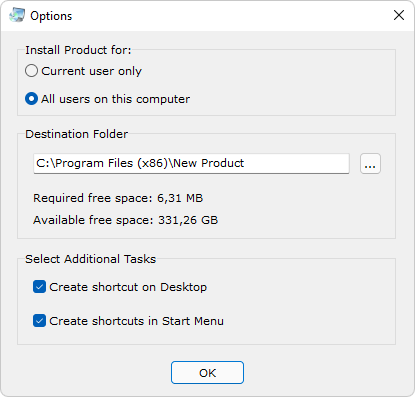
When using one of these options, it is highly recommended to specify the Alternative Installation Directory (page Installation / Advanced).
Example: if use "Ask User (All Users by default), then for the Installation Directory use <ProgramFiles>\<AppName>, for Alternative Installation Directory use <LocalAppData>\<AppName>.
If use "Ask User (Current User by default), then for the Installation Directory use <LocalAppData>\<AppName>, for Alternative Installation Directory use <ProgramFiles>\<AppName>.
When using Ask User, and the user chooses to install for All Users, then it is possible to replace the user-specific paths (such as AppData, Documents) with the common (public) paths - add parameter -CommonDirAll to Setup Parameters.
For example, if use the variable <AppData> (for current user: C:\Users\%UserName%\AppData\Roaming), it will be replaced with the variable <CommonAppData> ( C:\ProgramData ).
IMPORTANT: Please read the recommendation from Microsoft on where to install applications:
Your app must be installed in the Program Files folder by default. User data or app data must never be stored in this location because of the security permissions configured for this folder.
Your app data, which must be shared among users on the computer, should be stored within ProgramData.
Your app's data that is exclusive to a specific user and that is not to be shared with other users of the computer, must be stored in Users\%USERNAME%\AppData
In Actual Installer, use variables to replace them with actual paths:
Variable for Program Files - <ProgramFiles>
Variable for ProgramData - <CommonAppData>
Variable for Users\%USERNAME%\AppData - <AppData>
NOTE: It is not recommended to install files to User's Documents folder, as it is protected. Read more about protected folders.
The Windows registry has two main parts: HKEY_LOCAL_MACHINE is a key for All Users (per-machine) settings (writing to this key requires administrator privileges). HKEY_CURRENT_USER is a key for Current User (per-user) settings (administrator privileges are not required to write to this key).
In Actual Installer project, you can use a special key HKEY_DEFAULT (short HKDE) to replace it with HKEY_CURRENT_USER if the installation is for Current User; or with HKEY_LOCAL_MACHINE if the installation is for All Users. This special key is recommended to use when using the option "Ask User" in the "Install Product for" setting.