
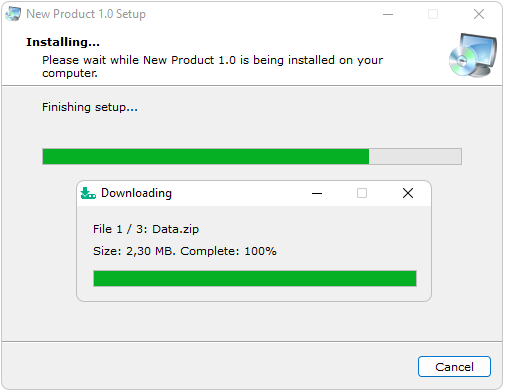
With our installation tool Actual Installer, you can create a Standalone Installer (also called Offline Installer), and an Online Installer (Web Installer) for your software program. The first type is a single executable setup file that includes all files of the program and does not require an Internet connection for the installation. The second one, an Online Installer, is a small setup file (usually a few MBytes only) that downloads the necessary files of the program from the Internet and installs it on the user's computer.
For creating online installers, Actual Installer uses Actual Downloader (a small tool that downloads files), and 7-Zip (a free archive tool that packs and unpacks files using LZMA compression).
To create a web installer, in the Actual Installer program, go to the General \ Output page and in the Configuration Package Type option select Setup EXE + Data (download from Web). Then in the "Data file URL" field specify the URL where the data file (archive) will be located for downloading (e.g. http://www.website.com/data.zip).
Then go to the Installation \ Files and Folders page and in the Source Directory field specify a folder which contains files of your program. This folder will be archived using 7-Zip into one data file (file name is used from "Data file URL", e.g. data.zip). The data file will be created in the Setup executable folder, at the build process. You need to upload this file on your web server. You can add additional files to the project using the buttons "Add Files / Add Folder" (files will be included in the setup executable file, not the data file).
During the installation process, the setup program executes a command to download the data file (using Downloader.exe), and a command to extract files from this data file into the installation directory (using 7za.exe). You can change the unpack options on the Installation / Advanced page ("Extract parameter for data file"). The default options ( -o"<InstallDir>" -aoa ), mean extract files into the installation directory (variable <InstallDir>), and overwrite existing files without prompt. To hide the extraction dialog, add s at the beginning ( s-o"<InstallDir>" -aoa ).
Note: when using web installer with the Uninstaller enabled (page Installation / Uninstallation), the uninstaller will have a flag "Full Uninstallation". This will remove all files and folders from the app's installation directory on uninstall.
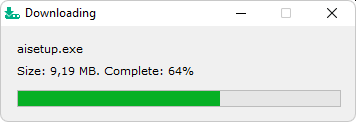
If you need to download any additional files during (before or after) installation, just select the menu Tools \ Add Downloader and enter a download link. See examples.
TIP: To show the user a checkbox, and download the file only if it is checked, see this example.