
For creating flexible installations, in your Actual Installer project you can specify custom commands to be executed on the user's system. You can run any Windows commands, launch files with command-line parameters, and more.
Commands can be launched with the 'Wait' flag, and you can use its exit code to perform additional tasks.
To add a command go to the System \ Commands tab and click Add.
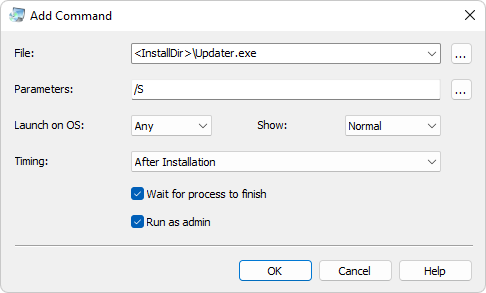
File - Specify a file to execute or an URL to open.
Examples:
C:\Windows\notepad.exe
<InstallDir>\Updater.exe
http://www.actualinstaller.com/
Parameters - Specify command line parameters / switches to be passed to the file when it is run.
Launch on OS - Specify 32-bit, 64-bit or Any Windows bitness under which the file should be executed. It is also possible to run commands on specific Windows versions (see below).
Show - The window state at startup.
Timing - Specify when the command should be executed: Before Installation, At User Information dialog, At Folder Select dialog, Click Install, After Installation, Start Uninstallation, Before Uninstallation, After Uninstallation.
Commands with timing Before Installation are executed when the setup program is launched (after reading custom variables).
Commands with timing Start Uninstallation are executed when the Uninstaller is launched, before asking the user to uninstall the app.
Commands with timing Before Uninstallation are executed when the Uninstaller is launched, after the user has confirmed to uninstall the app.
NOTE: Do not use files from folder <InstallDir> with timings Before Installation, At User Information dialog, and At Folder Select dialog, Click Install because they are not created yet. To be able to execute that files, they have to be located in the <SetupTempDir> folder (a temporary directory of the setup program). All files added in <SetupTempDir> folder are available right after starting the setup program.
Wait for process to finish - The installation waits for the given file to terminate before continuing. When using this option the setup program will store the exit code of the command in the variable <ExitCode> . And you can use this variable to perform additional task by adding a new command.
Run as admin - The file will be launched with administrator privileges.
NOTE: You don't have to select this option if you already selected the option "Run as Administrator" on the General \ Parameters page. In this case, the setup program will be launched with administrative privileges and all commands will inherit admin privileges automatically. If you configured your setup to install for All Users, then the setup program will have administrator rights (for Classic Wizard always; for Modern Interface ONLY during performing the main installation tasks - copying files, modifying Registry, executing commands After Installation).
Example:
Check for Updates in the Silent Mode: Launch 'Updater.exe' from the installation directory (variable <InstallDir>) with parameter /S
File: 		<InstallDir>\Updater.exe
Parameters: 	/S
Also, it is possible to use the Windows Command Prompt (by executing a file cmd.exe which is located in the system directory of Windows: C:\Windows\System32).
To execute a command you need to launch this cmd.exe file with specific command-line parameters which should begin with /C (executes the specified command-line and then exits). To see the result of the command it should begin with /K. More information here.
For example:
To create an empty folder you need to execute:
C:\Windows\System32\cmd.exe /C mkdir "C:\New Folder"
In Actual Installer project you need to specify it as:
File: 		<SystemDir>\cmd.exe
Parameters: 	/C mkdir "C:\New Folder"
Launch on OS: 	Any
Show: 		Normal
Timing: 	After Installation
Wait: 		No
Run as admin: 	No
IMPORTANT: In the Parameters field, all file / folder paths containing spaces must be quoted. Except when there is only a path. For Example:
Parameters: /C mkdir "C:\New Folder"
Parameters: C:\New Folder
NOTE: Do not forget to add /C or /K at the beginning in the Parameters.
Create an empty folder:
mkdir "C:\New Folder"
Delete a file:
del /Q "<InstallDir>\file.exe"
Delete a folder with all files and subfolders:
rmdir /S /Q "C:\Folder"
Copy a file from SetupTempDir to InstallDir:
copy /y "<SetupTempDir>\File.exe" "<InstallDir>\File.exe"
Copy folder with all files and subdirectories from SetupTempDir to InstallDir:
xcopy "<SetupTempDir>\Folder" "<InstallDir>\Folder" /E /Y
Change the folder attribute to 'Hide':
attrib +H "<InstallDir>\Folder"
Close / terminate Notepad:
taskkill /F /IM notepad.exe /T
Install MSI package:
msiexec /i "<InstallDir>\File.msi"
Set Current Directory to Installation Directory:
CD /D "<InstallDir>"
Set Current Directory to Installation Directory and launch a file:
(CD /D "<InstallDir>") && (START File.exe)
Check if the file exists and then rename / move it:
IF EXIST "C:\File.exe" ( MOVE /Y "C:\File.exe" "C:\NewFile.exe")
Check if two conditions are true, and copy file:
IF EXIST "C:\File.exe" (IF <Component1<==1 (COPY /Y "C:\File.exe" "C:\NewFile.exe"))
Delete registry key:
reg delete /f "HKEY_LOCAL_MACHINE\SOFTWARE\MyAppKey"
Import registry keys from a .REG file:
regedit /S "<InstallDir>\file.reg"
Launch a file on Windows 7 only:
IF /I <WindowsVersion>==6.1 "<InstallDir>\File.exe"
Variable <WindowsVersion> contains Windows version number:
5.2 = Windows XP or Windows Server 2003
6.0 = Windows Vista or Windows Server 2008
6.1 = Windows 7 or Windows Server 2008 R2
6.2 = Windows 8 or Windows Server 2012
6.3 = Windows 8.1 or Windows Server 2012 R2
10.0 = Windows 10 or Windows 11 or Windows Server 2016 and newer
== means Equal. Compares strings. More info at http://ss64.com/nt/if.html
File: 		<InstallDir>\run.bat
Parameters:
Wait: 		YES
File: 		IF <ExitCode>=5
Parameters: 	MSG(your_messagge)
Wait: 		NO
File: 		<InstallDir>\run.bat
Parameters:
Wait: 		YES
Variable Name	<Result>
Bitness		Default
Registry Key	<TempDir>\result.txt
Registry Value
Value Type	STRING
Default Data
File: 		<WindowsDir>\explorer.exe
Parameters: 	/select,"C:\MyDir\MyApp.exe"
Replace installer variables in any file (e.g. XML, TXT) with actual values / paths
File: 		CMDVAR
Parameters: 	specify a file
Download a file without Downloader.exe
File: 		DOWNLOAD:URL
Parameters: 	specify the destination for the file
Example:
File: 		DOWNLOAD:http://www.website.com/file.txt
Parameters: 	C:\file.txt
If the "Wait" option is checked, then the variable <ExitCode> will contain 0 (success download) or 1 (download failed).
If the "Show" option is set to "Hide", then do not show text "Downloading".
Available setup parameters:
-ShowDownloadURL add this parameter to show the download URL (for Classic Interface only, and Timing "After Installation")
-ErrorIfDwnFail if the download fails, then show "Installation completed with errors" on the finish dialog
-HaltIfDwnFail if the download fails, then halt the installation
-UserAgent use the following User Agent string: Mozilla/5.0 (compatible; AppNameSetup/AppVersion). Default is: setup file name (for example, Setup.exe)
Extract files from ZIP archive
File: 		ZIP:specify .ZIP file
Parameters: 	Specify a folder where to extract files
Example:
File: 		ZIP:C:\Archive.zip
Parameters: 	C:\MyFolder
Set current directory
File: 		SetCurrentDir
Parameters: 	specify a directory
Read custom variables again
Custom Variables are read when the setup program is launched (at setup startup). Then the setup program executes Custom Commands. If you need to read Custom Variables again, add:
File: 		GETVARIABLES
Parameters: 	leave empty
Disable & enable WOW64 Redirection
Actual Installer generates 32-bit setup files, which can be used to install both 32 & 64-bit applications. If you app is 64-bit, then you just need to select the option "64-bit only" on the page "General \ Requirements \ Operating System". In this case the setup program automatically disable WOW64 System for file and registry operations, so the setup program access the correct 64-bit paths, e.g.: "C:\Windows\System32".
If your app is 32-bit and you install it on 64-bit Windows, then when trying to access files in "C:\Windows\System32" it will be automatically redirected to "C:\Windows\SysWOW64" by WOW64 System. To access the "real C:\Windows\System32" you may use the path "<WindowsDir>\sysnative" or disable the WOW64 redirection using the Commands.
Disable WOW64: add a new command and in the File field type WOW64OFF
Enable WOW64: in the File field type WOW64ON
The Parameters field leave empty.
Caution: Always turn on the WOW64 after it was disabled and the main command is finished (set Wait to 'Yes')! Otherwise other file operations may fail.
First add a command WOW64OFF, then add a command for the operation in System32, and finally add a command WOW64ON to turn it back.
Condition for command
If you want to launch a file (or copy, move, or other file operation.) with condition then use the following format:
File: 		<SystemDir>\cmd.exe
Parameters: 	/C IF /I <var1>==<var2> command


Examples:
If setup language is French then launch File.exe:
Parameters: 	/C IF /I <Language>==French "<InstallDir>\File.exe"


If language is French then copy file "French.lng" from SetupTempDir to Installation Directory:
Parameters: 	/C IF /I <Language>==French (COPY /Y "<SetupTempDir>\French.lng" "<InstallDir>\French.lng")


If language is French then download a file "French.pdf" to the Installation Directory:
First, add Downloader (select the menu "Tools / Add Downloader")
Parameters: 	/C IF /I <Language>==French ("<SetupTempDir>\Downloader.exe /S "http://www.website.com/French.pdf" /D "<InstallDir>\French.pdf")
More information about "IF" command http://ss64.com/nt/if.html
If you want to show a message, stop the current action, or halt the installation, use the following format:
File: 		IF <var1>=<var2>
File: 		IF <var1>!=<var2>
File: 		IF <var1>><var2>
File: 		IF <var1><<var2>
to show a message:
Parameters: 	MSG(your message)

to terminate the installation with a message:
Parameters: 	HALT(your message)

to terminate the installation without messaging:
Parameters: 	HALT()

to stop the current action (only for Timing "Click Install", "At User Information dialog", and "At Folder Select dialog"):
Parameters: 	STOP(your message)

do not execute remaining commands
Parameters: 	EXIT

to show a message with YES & NO buttons, and execute a command if the User clicks YES:
Parameters: 	IFMSG(your message)command
Note: To compare strings, add quotes. Without quotes, specified values are compared as numbers or versions (example: 2=2.0 is true; "2"="2.0" is false).
Examples:
If you want to check an exit code of the command and then show a message. Previous command must be launched with flag "Wait" checked.
File: 		IF <ExitCode>=1
Parameters: 	MSG(your message)
To check if a variable is empty:
File: 		IF <var1>=""
Parameters: 	MSG(your message)
Show a simple message:
File: 		MSG
Parameters: 	your message, for new line use <#>
Show a message with Yes and No buttons, and perform an action if the user clicks Yes:
File: 		IFMSG(message)
File: 		IFMSG(message)[specify Windows versions in which to show a message, e.g. 7,10]
Parameters: 	enter command or URL, for example: <InstallDir>\File.exe
Example: conditions in Parameters:
Parameters: 	<SystemDir>\cmd.exe /C if <ExitCode>==1 ("<InstallDir>\File.exe")
Functions to extract file name or directory from a path are described here
You can use the following parameters in the Setup Parameters:
-nocmdifsilent - commands will not be executed in the Silent mode
-nocmdifupdate - commands will not be executed in the Update mode